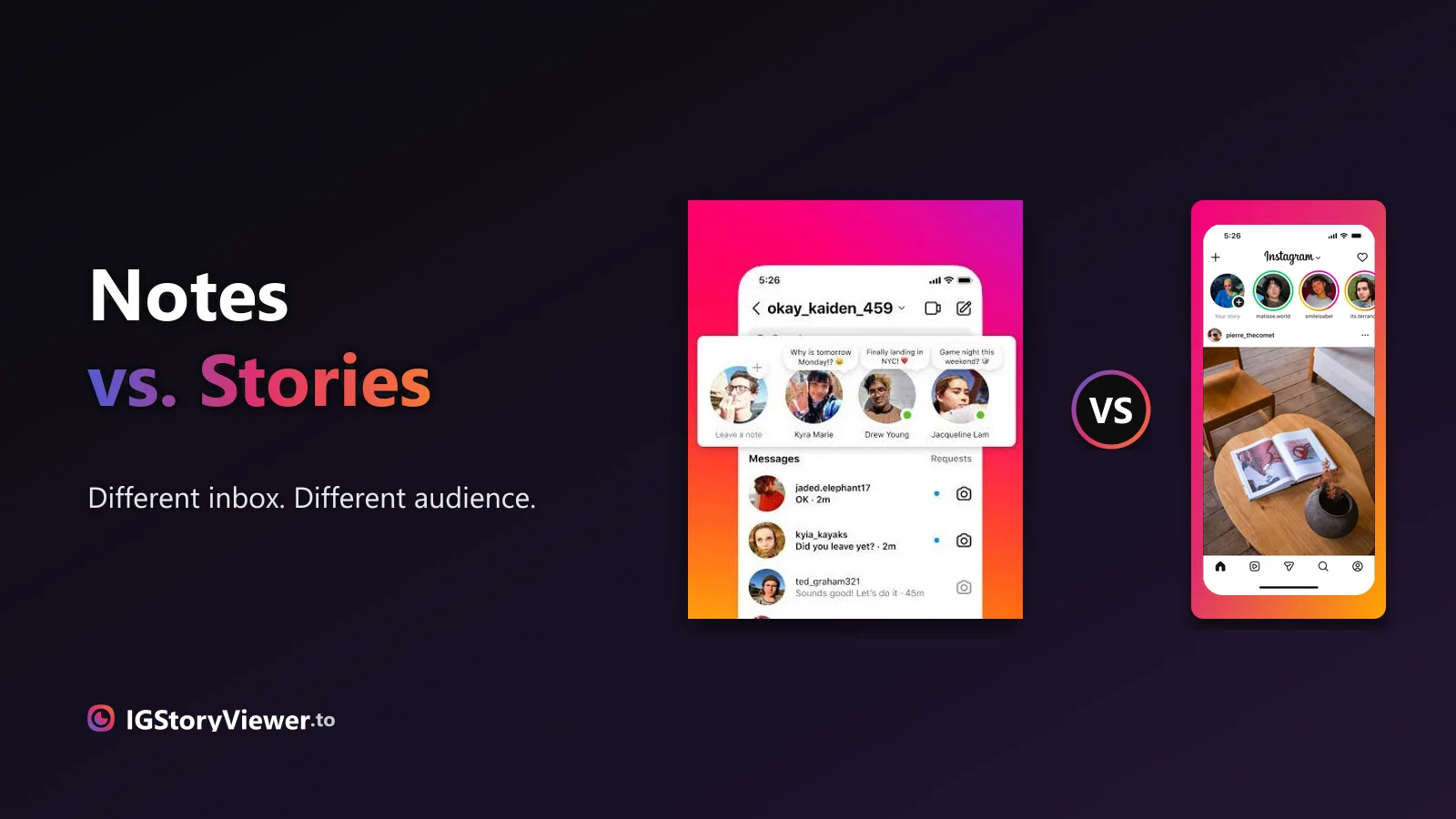
Instagram Notes vs. Stories: What's the Difference and Who Actually Sees It
A Note lives above your DM inbox and disappears in a day. A Story lives in the main feed. Here's what actually separates them.
 IG Story Viewer TeamOctober 2, 20266 min read
The row of circles under your bio is simpler to build than it looks — here's how to create one, design a cover that matches, and edit it without losing anything.
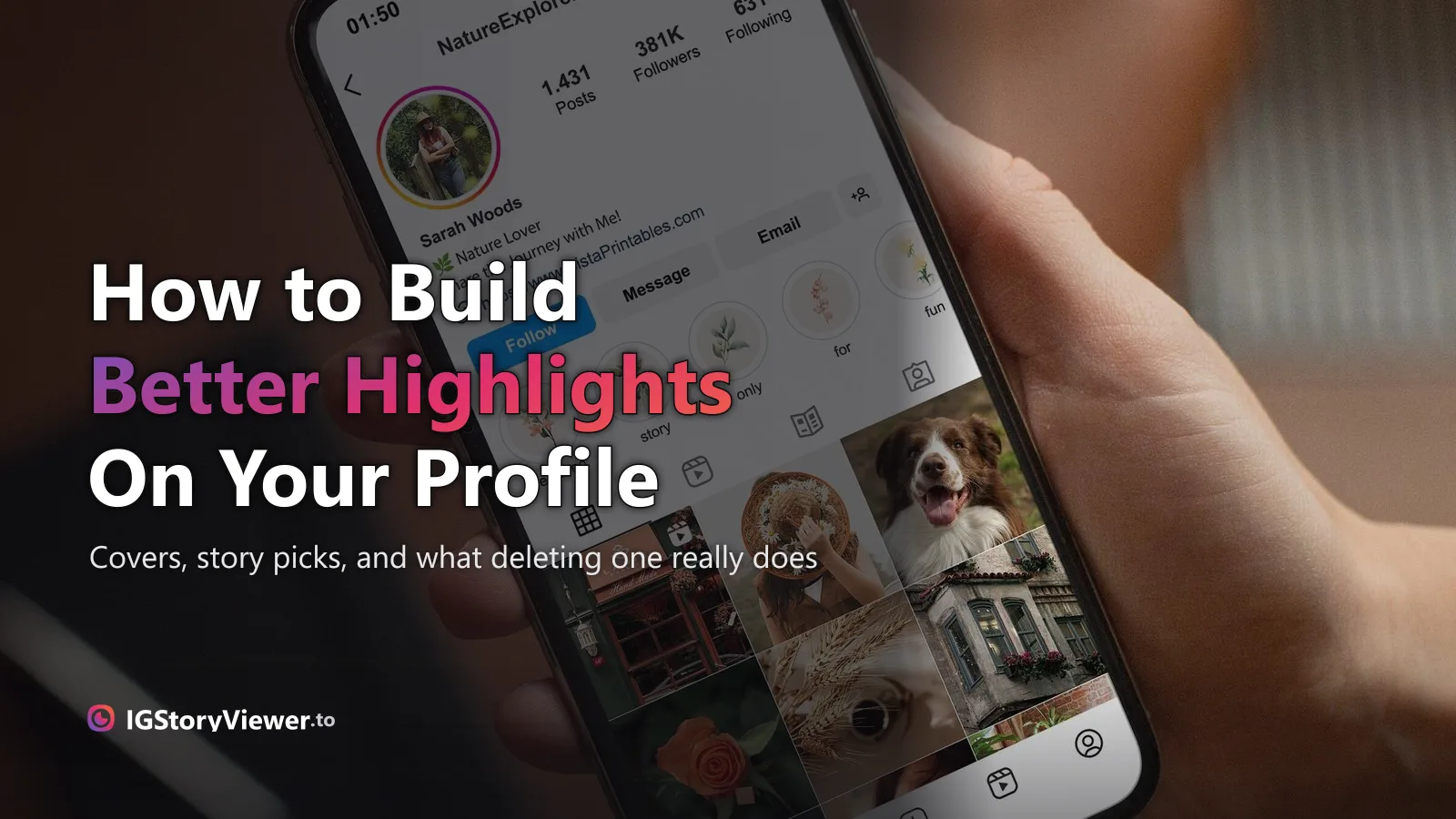
Some profiles have a dozen Highlights under the bio, labeled and color-matched like a menu. Yours might have none, or a leftover pile from three years ago you've never touched. Building or cleaning one up is simpler than it looks — the part that actually trips people up isn't the button, it's knowing which stories you're allowed to use, how covers work, and what deleting a Highlight really deletes.
None of that is explained inside the app. Here's the full picture — creating one, picking stories from further back than you'd expect, designing a cover, and editing safely once it exists.
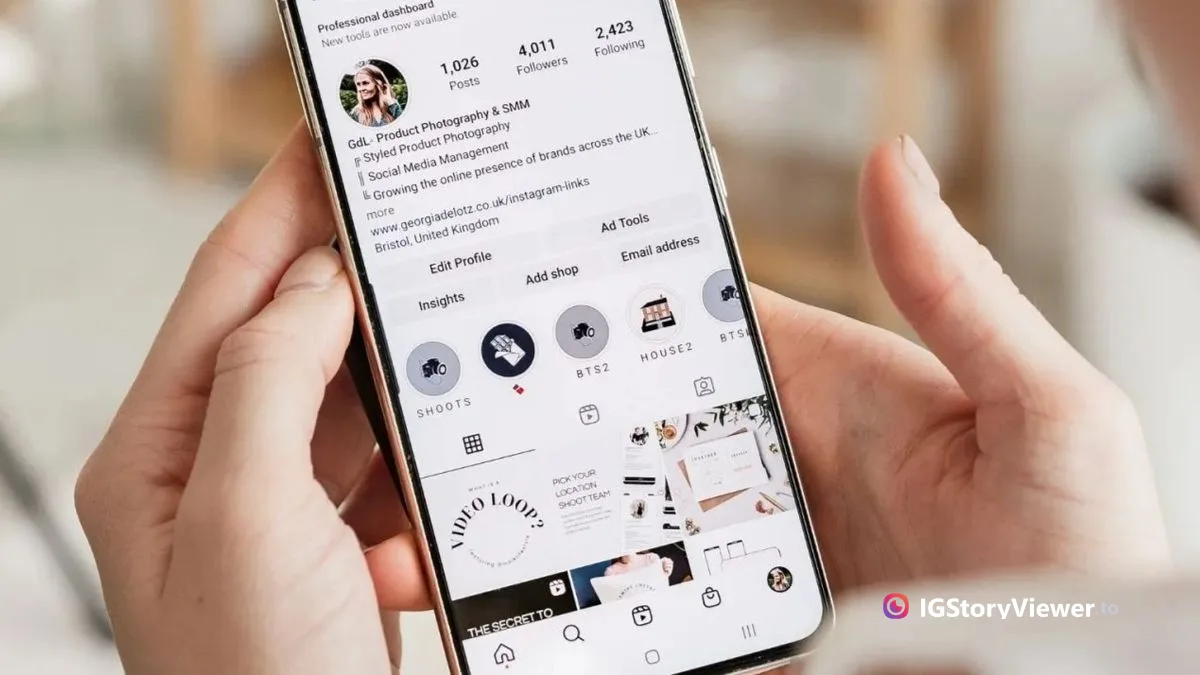
A Highlight is a named group of your own past stories, pinned to your profile with no expiry. You build it once, by hand, from stories you already posted — it's not automatic, and Instagram never creates one for you. That's different from your Archive, which is private and only you can see, and different from the Stories row at the top of the app, which shows other accounts' *current*, temporary stories, not yours.
A Highlight also follows your account's overall privacy. If your profile is private, only your followers can see your Highlights, same as everything else — making a Highlight doesn't widen who can view it.
There are two starting points: from your profile directly, or from a story you've already posted.
Tap "+ New" in the Highlights row under your bio.
Open one of your own stories, tap "Highlight" in the tray below it.
Check off which ones belong — you can pick more than one at a time.
Up to 16 characters for the name; pick or crop a cover image next.
16 characters isn't much room, and it's the first thing a visitor reads — a plain, literal name ('FAQ', 'Reviews', 'Menu') gets scanned and understood faster than anything clever. Save the personality for the cover.
This is the part most people miss: the story picker for a Highlight isn't limited to whatever's currently live. As long as a story is still saved to your account — meaning it wasn't deleted, and Save to Archive was on when you posted it — it stays available to add to a Highlight indefinitely, even years later. There's a search bar inside the picker specifically for scrolling back through your posting history.
If a story never got archived and has already expired, it's genuinely gone — no Highlight can bring back something Instagram no longer has a copy of.
The default cover is just a cropped frame pulled from the first story in the group — functional, but it rarely matches anything else on your profile. You have two better options, and the right one depends on how much time you want to spend.
| Default frame | Auto-cropped from the first story you added | None | A quick Highlight you're not precious about |
| Photo from your library | Any image on your phone, repositioned and zoomed | A couple of minutes | Matching a specific color or icon style across all your Highlights |
| A frame from a different story | Pick any moment from any story in the group, not just the first | A minute | When the default frame just looks awkward cropped |
A photo isn't the only route to consistency, either. Plenty of accounts skip photo covers entirely and use plain, single-color icon images instead — one flat background color per Highlight, sometimes with a small symbol on it. It reads as more minimal than photo covers and it's just as easy to build with any basic image or design app.
Whichever route you pick, you can change it later without touching the stories inside — editing a cover never removes or reorders what's actually in the Highlight.
Open a Highlight, tap the "···" menu, and "Edit Highlight" lets you add more stories, remove ones that no longer fit, rename it, or swap the cover — any time, not just when you first create it. To reorder the Highlights themselves along your profile, press and hold one and drag it into position.
Only takes it out of that collection. The original story stays in your Archive, untouched, and can be added to a different Highlight later.
Removes the collection and its cover from your profile — but every story inside it stays saved in your Archive. Nothing is actually deleted.
A Highlight is a commitment — it's the first thing a new visitor sees on your profile, indefinitely. The stories worth that kind of permanence are the ones people would look for on purpose: an FAQ, a portfolio piece, reviews, a price list, a recurring series. A story that was only interesting in the moment doesn't need to outlive its 24 hours just because the option exists.
A useful test: would a first-time visitor to your profile go looking for this on purpose? A launch announcement from eight months ago usually wouldn't pass that test. A running FAQ, or proof of what you actually do, almost always does.
If you're not sure whether something's worth keeping forever, a reasonable gut check is comparing it to what an outsider — someone who doesn't follow you yet — would actually want to see first. Our story viewer shows any public account's current story exactly as a stranger sees it, no login needed, which is a quick way to look at your own profile from the outside before deciding something belongs in a Highlight for good.
View any public account's current story exactly as a non-follower sees it — a quick check before you decide what's Highlight-worthy.
We build a free, anonymous Instagram story viewer and write practical guides on watching, saving, and understanding Instagram stories — without the hype.
More about usA Note lives above your DM inbox and disappears in a day. A Story lives in the main feed. Here's what actually separates them.
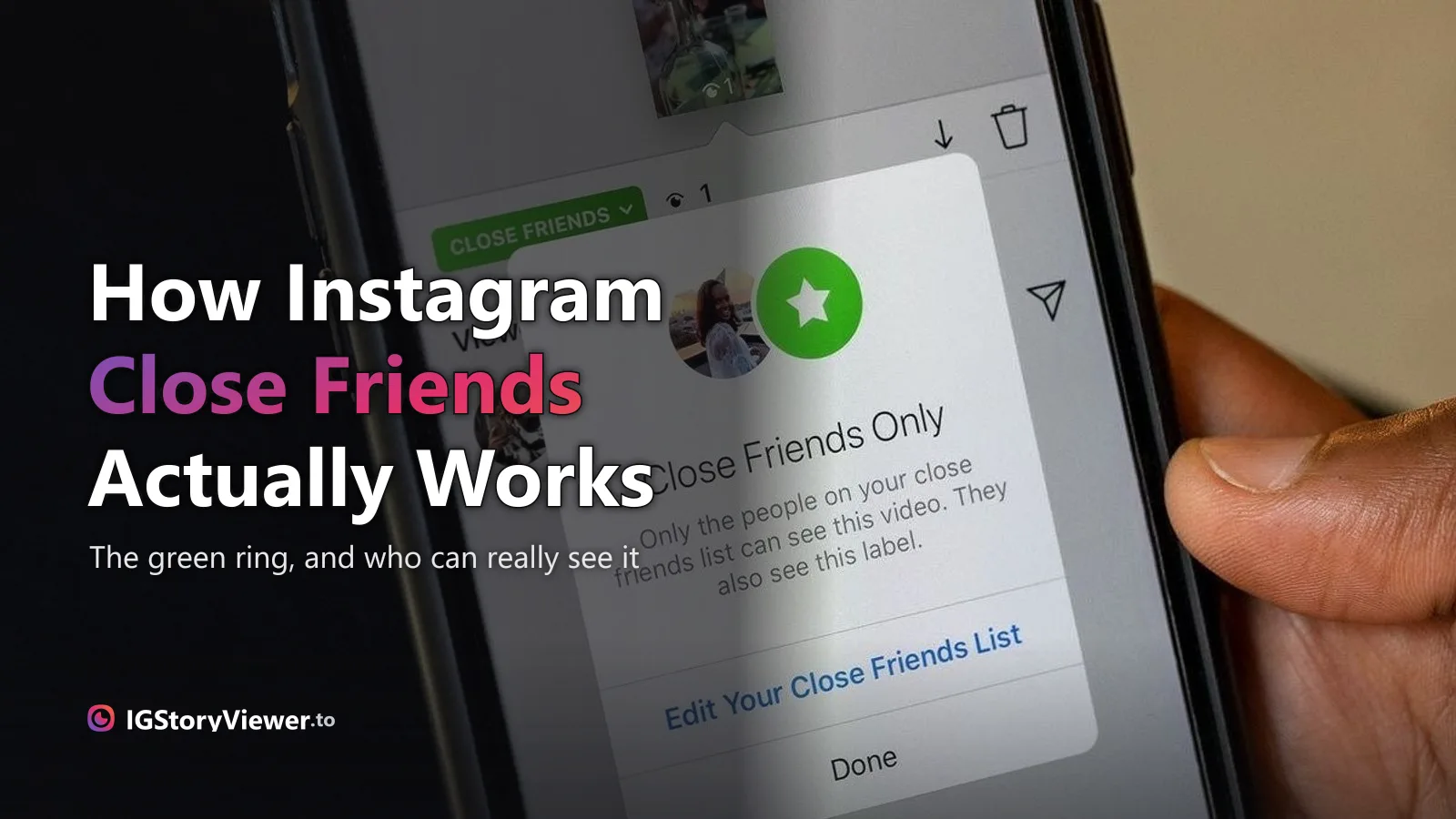
The green ring means someone posted a Close Friends story. Here's what that actually restricts — and whether any viewer, ours included, can get around it.