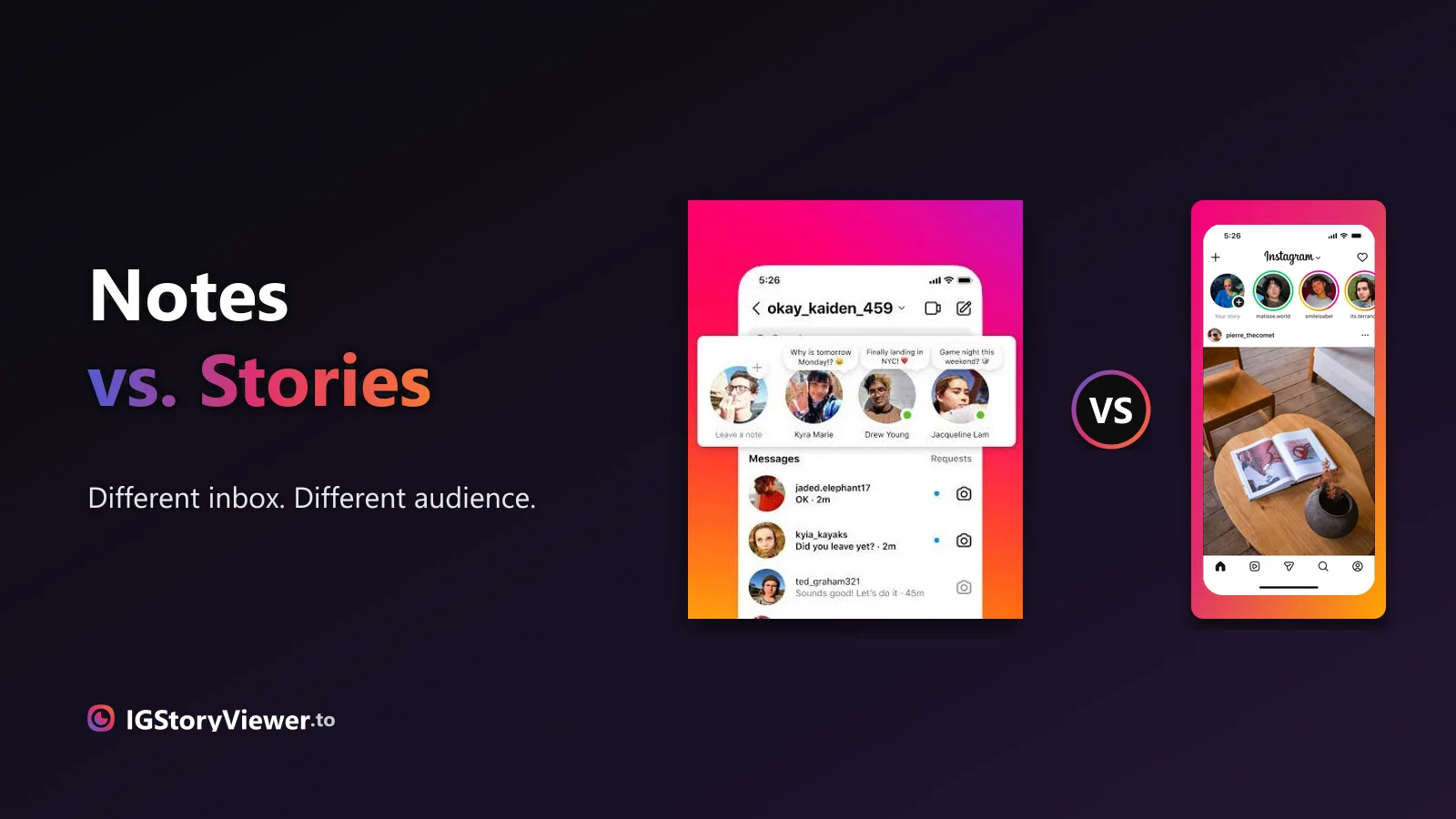
Instagram Notes vs. Stories: What's the Difference and Who Actually Sees It
A Note lives above your DM inbox and disappears in a day. A Story lives in the main feed. Here's what actually separates them.
 IG Story Viewer TeamAugust 26, 20266 min read
Your story is about to hit 24 hours, or someone else's public story is worth keeping. Here's the built-in way to save your own, and the honest way to save theirs.
A story you posted is about to hit 24 hours and vanish — or someone else posted something on their public story that you want to keep. Two different problems, and two different right answers.
Your own stories already have three built-in ways to survive past 24 hours, and none of them is a screen recording. For someone else's public story, screen recording does work — but it's not the only option, and it's not the best-quality one. Here's the right way to handle both.
Before you reach for your phone's screen recorder, know that Instagram gives you three native ways to hold onto a story after its 24 hours are up — Highlights, Archive, and a plain manual save. None of them cost you quality, and none of them involve recording your own screen. Most people default to screen recording purely out of habit, not because it's actually the best option.
The manual save is the fastest option when you just want one story, right now:
Tap into it while it's still live, within the first 24 hours.
It's in the bottom-right corner of the story.
Some app versions label it "Download" instead.
It's on your phone now, full quality, ready to reuse or repost.
Which one's right depends on what you want to do with the story afterward — show it off, keep a private record, or reuse the file somewhere else.
| Highlights | Pinned to your profile, no expiry | Anyone who visits your profile | Content you want to keep showing off |
| Archive | A private tab only you can open | Just you | Keeping a record without anyone seeing it |
| Manual save (··· → Save) | Your phone's camera roll | Just you, until you share it | Reusing the clip in a Reel, post, or another app |
| Auto-save (Settings toggle) | Every story added to Archive automatically | Just you | Never having to remember to save |
Highlights have one more perk worth knowing: you can organize them into named covers on your profile, so anything you want a new visitor to find easily — a FAQ, a portfolio piece, a price list — stays one tap away instead of buried in your Archive.
If you're not sure which to pick, turn on auto-save and stop thinking about it — that's the next step.
Go to your profile, open Settings, and look for Archiving and downloading (menu wording can shift between app versions — search "archive" in the settings search bar if you don't see it right away). Turn on Save to Archive and every story you post gets a private copy automatically, the moment it goes live. There's also a separate Save to Camera Roll toggle nearby, which additionally drops a copy onto your device — useful if you want the actual file, not just an in-app archive.
Turn both on once and you're done. No more losing a story because you forgot to save it before the 24 hours ran out.
One thing auto-save won't do: back-fill anything you already posted. If a story from last week already expired before you flipped the toggle, it's gone — this only protects what you post from now on.
For a public account, yes — but how you do it changes the result. A screen recording captures exactly what's on your screen: your phone's status bar, the story's progress bar, and whatever compression your recorder adds. It works, and it's silent — screen recordings don't notify the story's owner any more than a screenshot does — but the file you end up with is a recording of a recording, not the original.
The cleaner route skips your phone entirely. Our Instagram story viewer loads a public account's current story directly from Instagram's own public data — the same story anyone can already see, just without opening the app or logging in. You get the original image or video, at its original quality, with nothing extra baked in.
Works on any story, but you record your phone's UI too — status bar, progress bar, and re-compression on top of the original.
Pulls the original file directly, no UI chrome, no app, no account of your own needed — just the public username.
If you want to understand exactly how a tool like that works under the hood, and what to check before trusting one, our breakdown of anonymous story viewers covers the full safety checklist.
If it's your story: turn on auto-save once, and every story you post is backed up the moment it goes live — no extra steps, no lost content. Use Highlights for anything you want to keep showing, Archive for everything else.
If it's someone else's public story: a screen recording gets the job done, but a browser-based viewer gets you the actual file without opening the app. Either way, the account has to be public — that's the line, and it's there for a reason.
Both routes take longer to explain than to actually do. Once you've flipped the auto-save toggle and bookmarked a viewer for public accounts, saving a story stops being something you have to think about at all.
View or download a public account's current story in your browser, at its original quality — no login required.
We build a free, anonymous Instagram story viewer and write practical guides on watching, saving, and understanding Instagram stories — without the hype.
More about usA Note lives above your DM inbox and disappears in a day. A Story lives in the main feed. Here's what actually separates them.
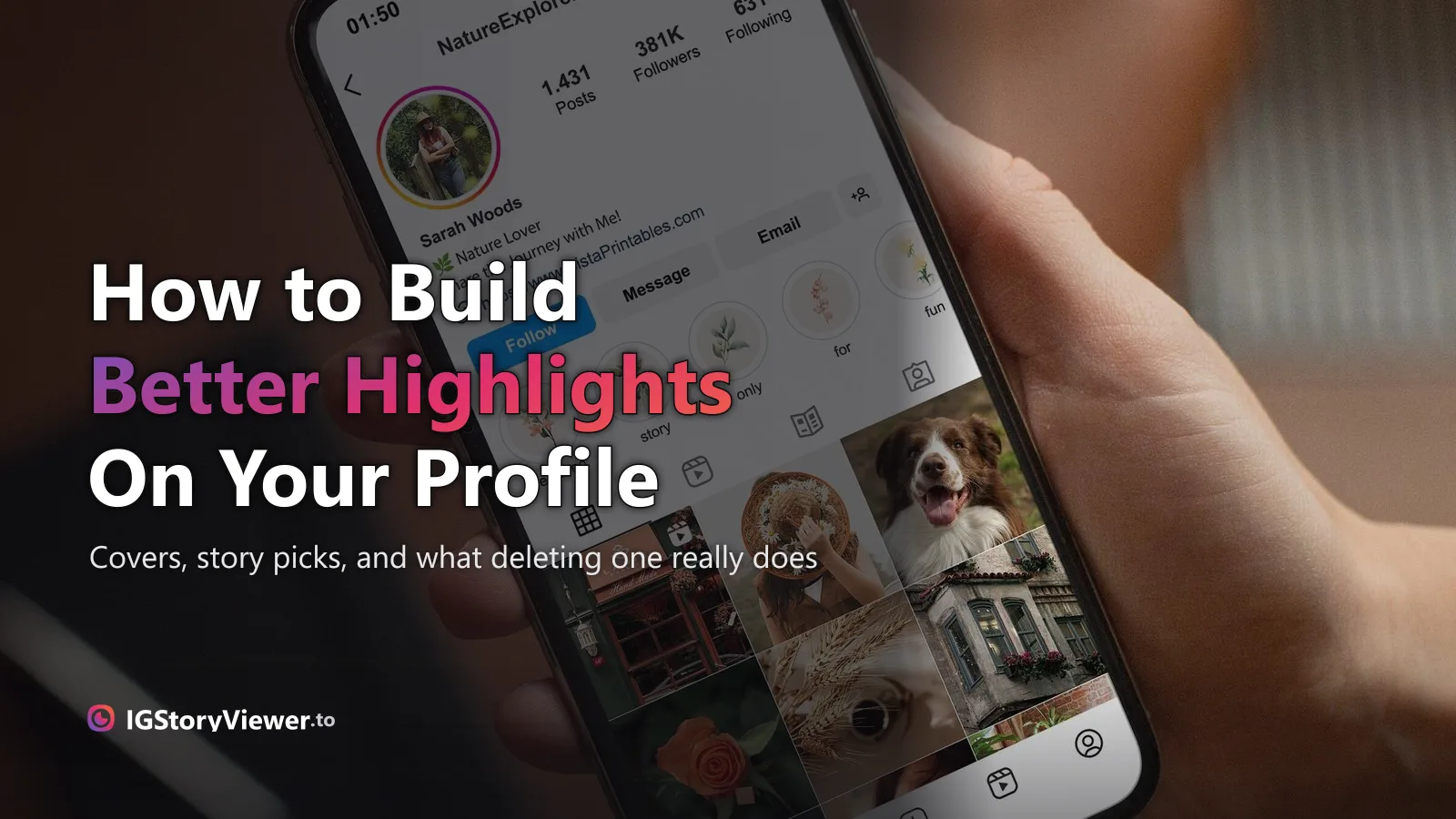
The row of circles under your bio is simpler to build than it looks — here's how to create one, design a cover that matches, and edit it without losing anything.